Map Creator

Description

Is a tool for placing tile objects on a grid, and can also be used to place default objects using a variety of custom settings and tools.

How To Create

In the Unity toolbar, select:

Spirit604/MapEditor/Create/Map Editor

_images/HowToCreate.png

Structure

_images/MapCreatorComponent.png
  1. Cached values.

  2. Common settings.

  3. Modes.

  4. Tabs.

  5. Layer.

  6. Selected info.

  7. Categories.

  8. Prefabs.

Prefabs

MapCreator's scroll view consists of prefab categories.

Category - it’s a prefab set, create categories according to your needs.

How To Create Category

_images/AddCategory1.png
  • Click + button to start adding category.

  • Enter category name.

  • Click Add button.

    Note

    To delete a category, select category and click the - button.

How To Add Prefab

  • Drag & drop desirable prefabs to drop tab.
    _images/AddingPrefabs1.png
  • Prefabs are ready to use.
    _images/AddingPrefabs2.png

Note

MapTile component is used in order to calculate intersections of objects on the grid without colliders, so if you don’t need it, you can use default game objects.

Category

_images/CategorySOExample.png
Title : name of category.
Prefab data:
  • Prefab : reference to the prefab gameobject.

  • MapTilePrefab : reference to the MapTile prefab.

  • TileSize : object size in grid cells (you can set the size manually if the prefab doesn’t have a MapTile component).

MapTile category parent type:
  • Local map path : object is created relative to the path of the MapCreator layer.

  • Scene path : object is created relative to the path of the scene root.

Scene path : object creation path.

Layer

MapCreator layers is used to configure the display, selection, removal of objects of the selected layer in the scene and display in the inspector, depending on the selected edit mode.

_images/LayerSettings1.png
  • Show all layers [if disabled]:`
    • Selected `MapTile` layer

    • Disable other object layers : turn off objects in the scene with the improper layer.


Adjust the layers for displaying objects in the inspector according to their layer.

_images/LayerSettings2.png _images/LayerSettings3.png

_images/LayerSettings4.png

Show only Layer1 objects example.


_images/LayerSettings5.png

Show only Layer2 objects example.


_images/LayerSettings6.png

Show only Overlay objects example.

Selected Info

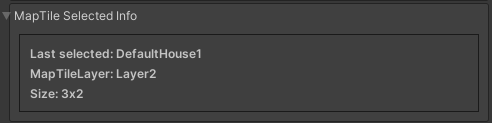
Information about the last selected prefab.
_images/MapTileSelectedInfo.png
Last selected : name of the last prefab selected.
MapTile layer : MapTile layer.
Size : tile size of the MapTile.

Configs

Cached Values Settings

_images/CachedValuesTab.png
Root : root for MapCreator’s stuff.
Default Game Objects Root : root for created default game objects (without MapTile component).
Tile Path : the path in the project where the categories are located.
Tileset Path : the path in the project where the tilesets are located.
Map Preference Config : Map Preference Config scriptable object.
Map Config : MapCreator config scriptable object.
Hotkey Config : hotkey config scriptable object.
Map Creator Tab View : internal MapCreator’s tabs view.
Map Data Holder : map layer data.

Map Data Holder Settings

_images/MapHolderTab.png

Here are references to the maps and the names of the layers.

Map Preference Config

_images/MapPreferenceWindow.png

Common Settings

Tile Size : default tile size of MapCreator.
World Tile Relative Offset : world offset relative to the rounded cell position.

Tool Settings

Show Scene Tool Panel : displays M (select MapCreator) UI button on the scene view.
Tool Bar Max Count : the number of category buttons in one row of the toolbar.
Tile Button Size : the size of the prefab button in MapCreator’s prefab scroll view.
Has Remove Buttons : enable buttons to remove prefabs from categories in MapCreator’s prefab scroll view.
Remove Button Size : size of remove button.
Buttons Row Count : the number of prefab buttons in the scroll view in one row.
Prefab Scroll View Height : height of scroll view of MapCreator.

Temp Mesh Settings

Default Draw Mesh Typeobject view type for temporary meshes.
  • Draw Mesh : display the temporary mesh object at the end of a render pipeline cycle.

  • Draw Mesh Now : the display of the temporary mesh object at the moment.

Apply Allow Color To Objects : enable custom allow colour for the objects that can be placed.
Allow Mesh Grid Color : colour of the mesh grid when the object can be placed.
Allow Object Color : colour of the object that can be placed.
Forbidden Mesh Grid Color : colour of the object that can’t be placed.
Intersection Mesh Grid Color : colour of the object that intersects another object.
  • Temp Overlay Mesh Grid Settings
    • Mesh Surface Offset : offset from surface to mesh grid (object visual bounds).

Common Settings
_images/CommonSettingsTab.png
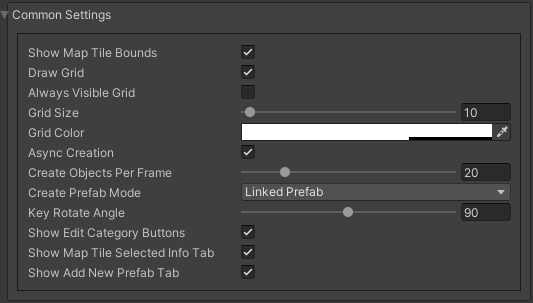
Show Map Tile Bounds : display the mesh grid of the object (object visual bounds).
Draw Grid : display scene view grid.
Always Visible Grid : the scene view grid is always displayed, regardless of the overlap with other objects.
Grid Size : size of the grid in the scene view.
Grid Color : colour of scene view grid.
Async Creationasync instantiation of the objects.
  • Create Objects Per Frame : the number of instantiated objects per frame.

Create Prefab Mode:
  • Linked prefab : created object will be linked with source prefab.

  • Prefab clone : created object will be cloned from source prefab.

Key Rotate Angle : the angle of rotation of the object by pressing the key (by default Capslock key).
Show Edit Category Buttons : show add/remove buttons for category in the MapCreator inspector.
Show Map Tile Selected Info Tab : show MapTile selected info tab.
Show Add New Prefab Tab : show drag’n’drop prefab box in the MapCreator inspector.

Hotkeys

Common Hotkey Config

_images/HotKeyConfig.png
Rotate button : rotate button of the object.
Switch sub prefab button : re-randomize TRS (transform, rotation, scale) or selected objects (if randomize feature is enabled and configured).
Action button : action of the MapCreator edit mode (for example object spawning).
Unselect prefab button : cancel action or unselect selected temporary prefab.
Select default edit mode button : select default edit mode hotkey.
Select brush mode button : select brush mode hotkey.
Select line mode button : select line mode hotkey.
Select area mode button : select area mode hotkey.
Select destroy mode button : select destroy mode hotkey.
Select tileset mode button : select tileset mode hotkey.
Select translate mode button : select translate mode hotkey.
Select template mode button : select template mode hotkey.
Scroll wheel button : additional action in the edit mode using the mouse wheel and the selected key.

Custom Hotkey Settings

  • Single mode:
    • Ctrl & scroll wheel button : increasing and decreasing the scale of the object.

  • Line mode:
    • Default:
      • Ctrl & scroll wheel button : increase number of the floors (multi-floor support should be enabled).

    • Curved:
      • Simple line:
        • Ctrl & left-mouse click : add a new segment of the line.

  • Area mode:
    • Default:
      • Ctrl & scroll wheel button : increase number of the floors (multi-floor support should be enabled).

  • Destroy mode:
    • Selection mode:
      • Space : deleting selected objects using the selection box.